Cloning

Cloning is the process of signing onto two AOL screen names at the same time. This is done by signing on to AOL4 or AOL5 through the phone line then AOL2.5 through the internet connection provided by AOL4 or 5.
Beware: AOL does not let two screen names on the same account to be signed on at the same time. Therefore, make sure you have two screen names available, with each on a seperate account.
Click here to see me cloning
Setting up your Computer
- Download AOL4 or AOL5 if you dont already have it
 - Keyword: Upgrade
- Download AOL2.5
 - AOL25.exe
- Download the latest version of UltraEdit32
 - uedit32.zip
- When loading America Online, the AOL program checks to see if another America Online is open. If another AOL is open then the AOL you are opening will not load. So in order to load another AOL we need to trick the AOL program into thinking there are no other AOLs open. The window that AOL looks for while opening is called AOL Frame25. So we need to open another AOL version and change the name of it to something other than AOL Frame25 (We will change it to AOL Frame26). The following instructions show how to accomplish this task.

Doing this will you to open AOL4.0 or AOL5.0 and AOL2.5 at the same time.
- Open UltraEdit (Click Start | Programs | UltraEdit32 | UltraEdit | UltraEdit-32 Text Editor)
- Click the menus File | Open
- Navigate to the AOL2.5 directory and open waol.exe (eg. C:\AOL25\waol.exe)
- Click the menus Find | Replace
- In the "Find What" text box type AOL Frame25
- In the "Replace With" text box type AOL Frame24
- Click "Replace All" then click "Yes" on the Confirmation Message box
- Click File | Save
- Close UltraEdit
- In this step you will change the sign on options in AOL2.5.
Doing this will let you connect to AOL through your online connection with AOL4/5.
- Open AOL2.5
- Click "Setup" on the Sign On screen
- Click "Create Location" on the Network & Modem Setup window
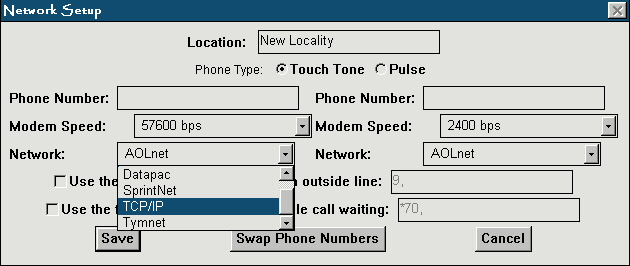
- A window should appear "Network Setup". Where it says "Network" and gives a list of options choose from the combo box "TCP/IP" Click here for an illustration
- Click "Save"
- Click "Ok"
- Close AOL2.5
Now you are ready to clone
- Sign onto AOL4 or AOL5
- Open AOL4 or AOL5
- Choose the screen name you want to sign on as, type in your password and sign on.
- Minimize AOL4 or AOL5 but still keep it open
- Sign on AOL2.5
- Open AOL2.5
- Click "Setup" on the Sign on screen
- From the Network and Modem Setup window choose the last item (It may be "New Locality" or something else but don't select "Home")
- Select Guest from the sign on list and sign on
Congratulations!
If everything has worked correctly then you should be signed on two screen names at once: one screen name with AOL4 or AOL5 and another with AOL2.5.
You can edit another AOL version using the same process and sign on another screen name. However, most people dont have three accounts to use. You can sign on an AIM name as well.
Questions? Comments? Problems?
xxalphai@aol.com